Claude Code One-Click Install
Use the one-click installer from CiYuanX to set up Claude Code on Windows automatically — no need to install Node.js by hand or edit any config files. The installer downloads and installs Node.js, installs Claude Code, and walks you through entering your CiYuanX token.
TIP
This guide covers the one-click installer for Windows. If you're on macOS / Linux, or you prefer to install and configure manually, see Claude Code CLI Setup.
Prerequisites
Before you start, make sure you have:
- A CiYuanX account (sign up here)
- A CiYuanX API token (get a key)
- Windows 10 or later
Installation steps
1. Download the installer
Download the package: ClaudeCodeInstaller.zip. Once the download finishes, unzip it to get ClaudeCodeInstaller.
2. Run the installer
Double-click ClaudeCodeInstaller to start the installation.
If you see a "Windows protected your PC" prompt, this is the normal Microsoft Defender SmartScreen warning for an unsigned app and is safe to continue — click Run anyway.
3. Enter your CiYuanX token
Once the installer starts, copy the API token you created on the platform, paste it here, and confirm.
Get your token
Create and copy your token on the API Keys page.
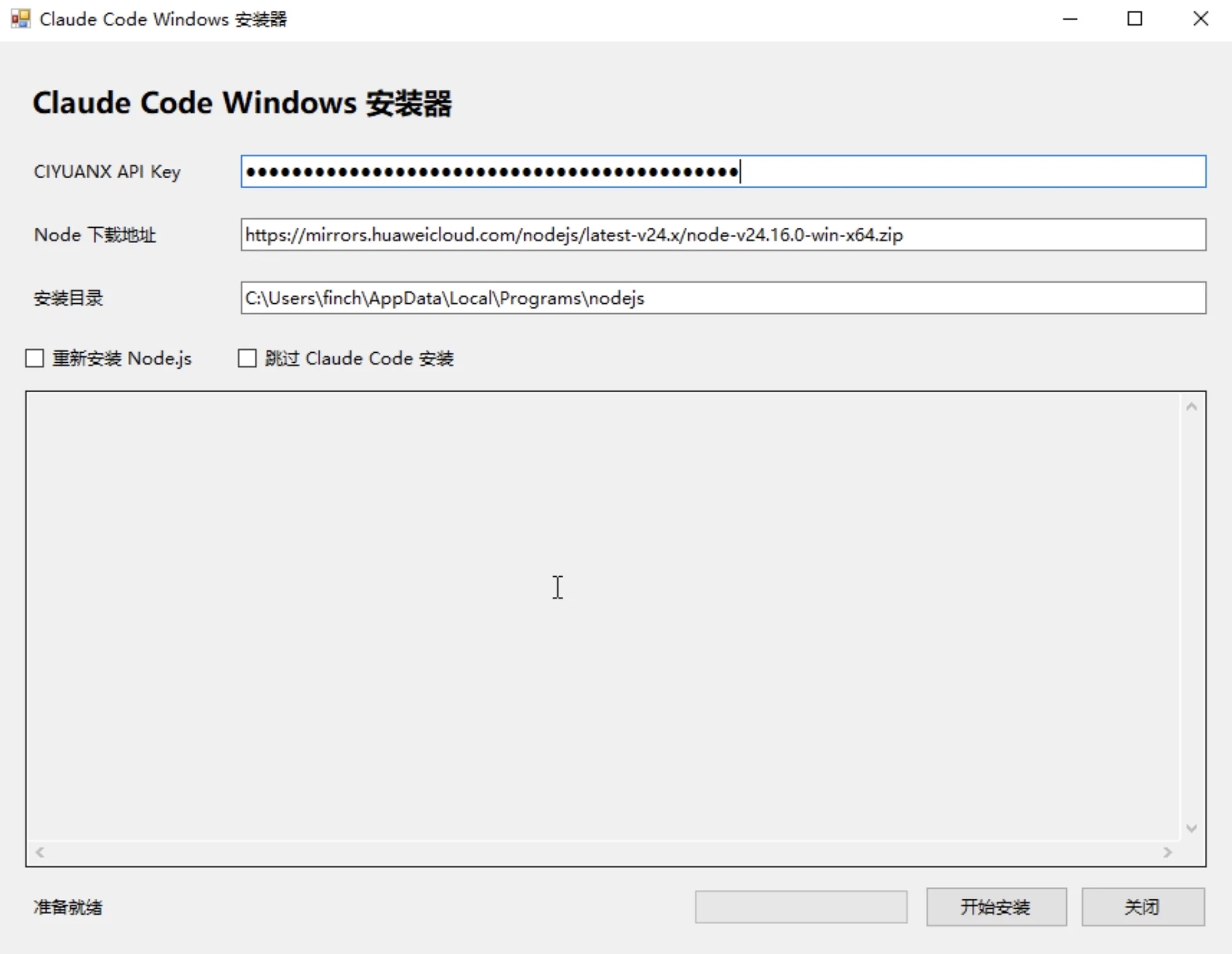
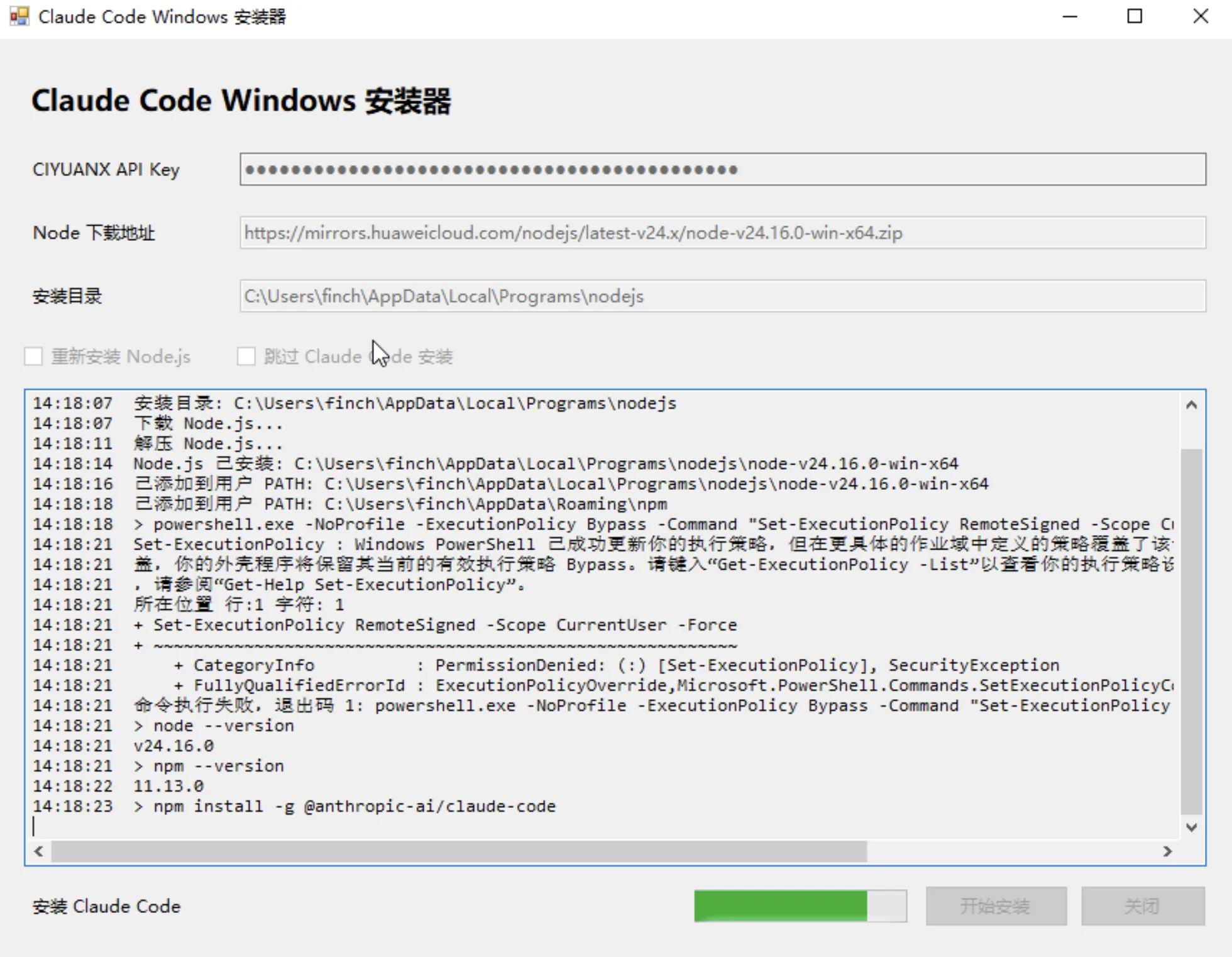
4. Node.js and Claude Code install automatically
After you enter your token, the installer automatically downloads and installs Node.js, then installs Claude Code. No manual steps needed.
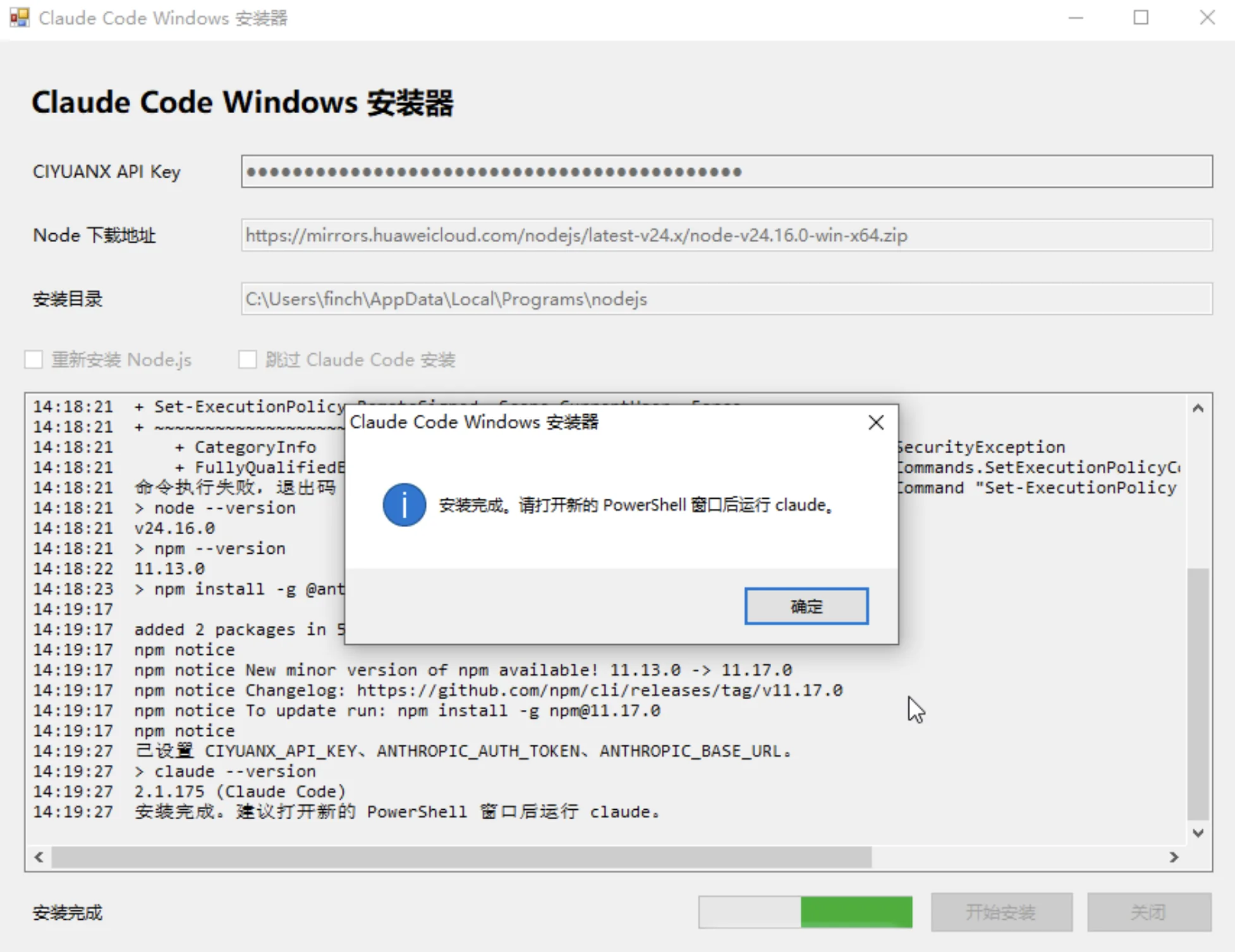
5. Installation complete
Once everything is installed, the installer shows a completion message.
6. Start using it
After installation finishes, open PowerShell and run claude to get started:
claude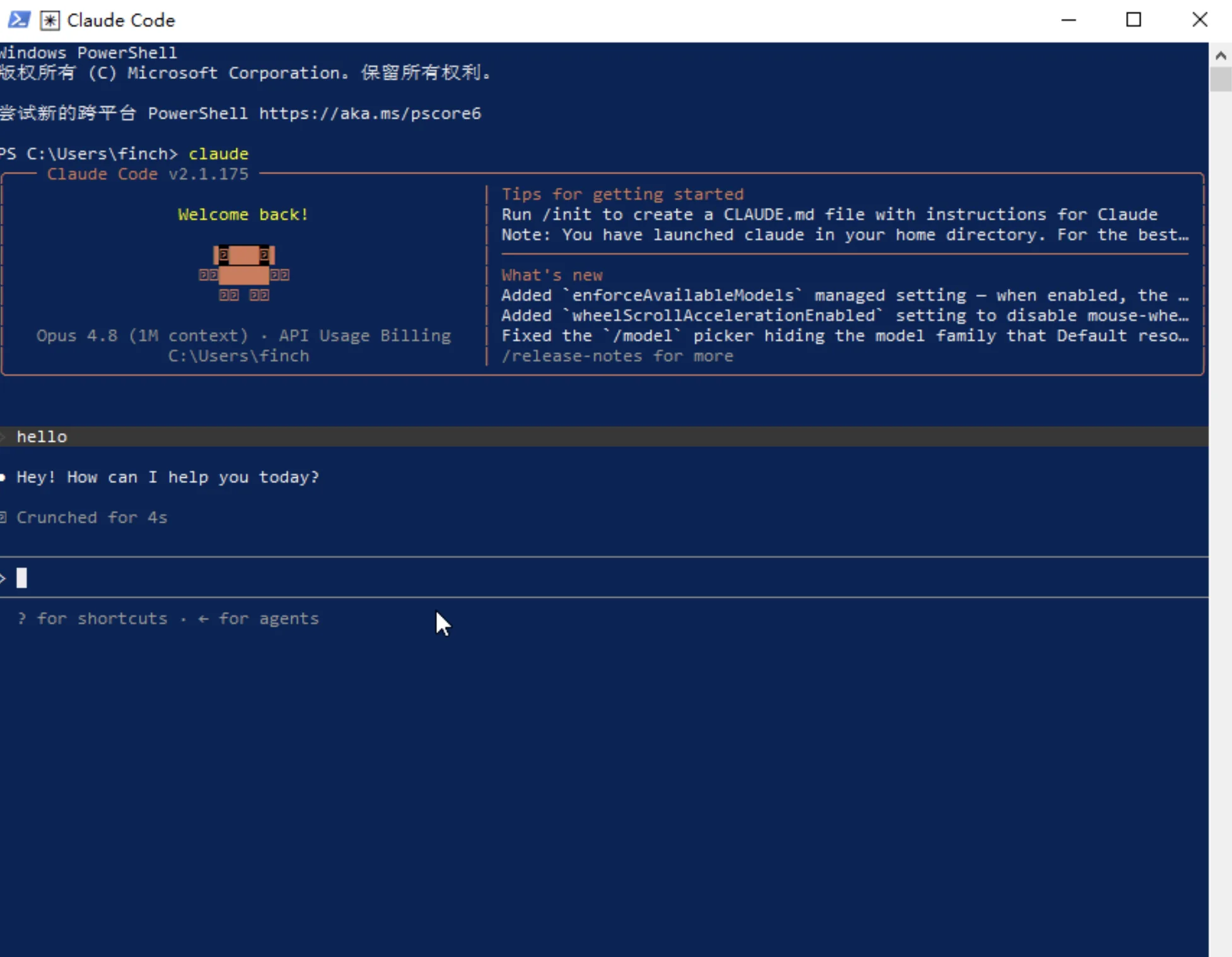
That's it — Claude Code is now configured with CiYuanX and ready for coding.