Quick Start (Non-Technical)
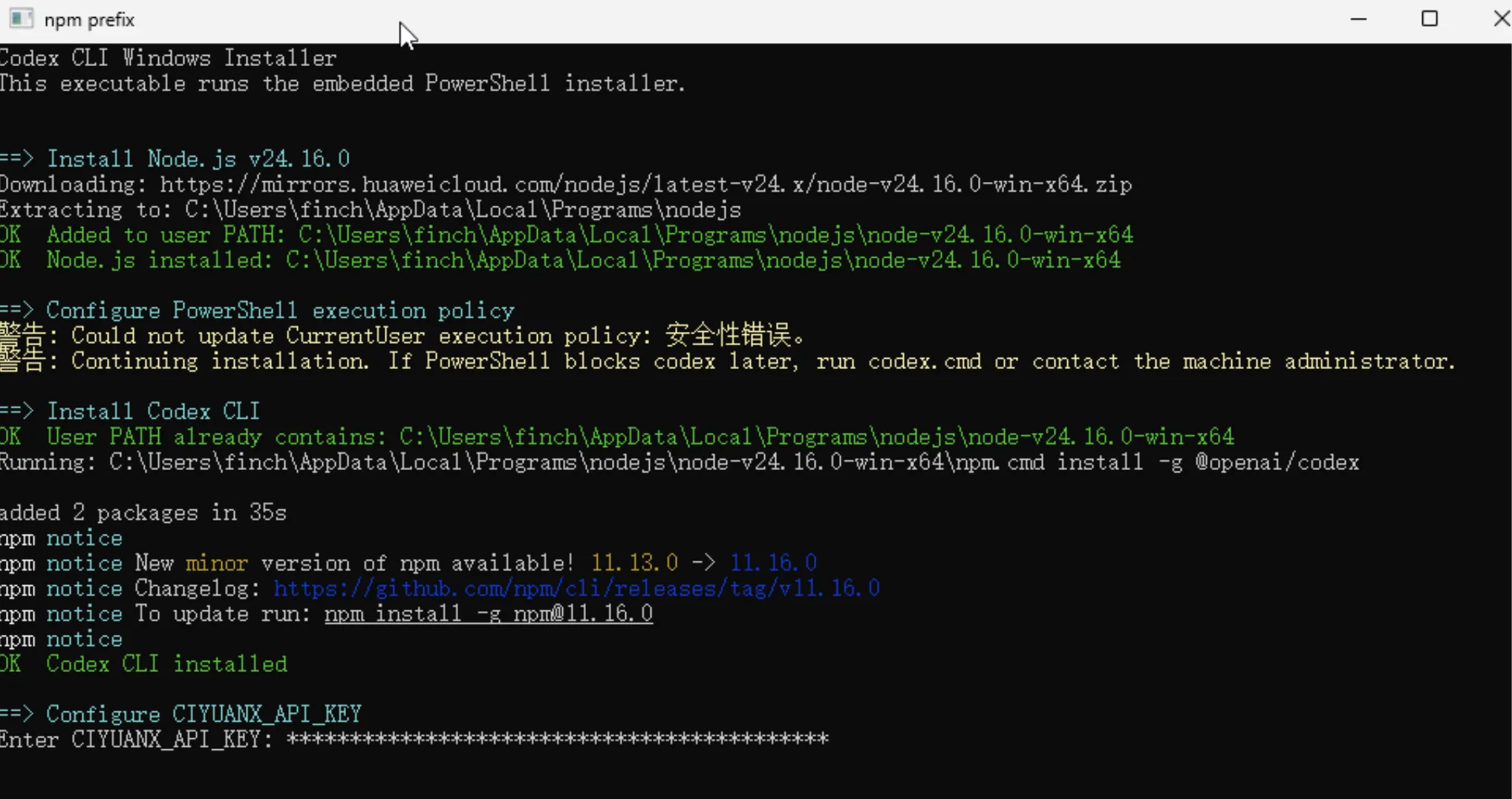
Use the one-click installer from CiYuanX to set up the Codex CLI on Windows automatically — no need to install Node.js by hand or edit any config files. The installer downloads and installs Node.js, installs the Codex CLI, and walks you through entering your CiYuanX token.
TIP
This guide covers the one-click installer for Windows. If you're on macOS / Linux, or you prefer to install and configure manually, see Codex CLI Setup.
Prerequisites
Before you start, make sure you have:
- A CiYuanX account (sign up here)
- A CiYuanX API token (get a key)
- Windows 10 or later
Installation steps
1. Download the installer
Download the package: CodexCliInstaller.zip. Once the download finishes, unzip it to get CodexCliInstaller.exe.
2. Run the installer
Double-click CodexCliInstaller.exe to start the installation.
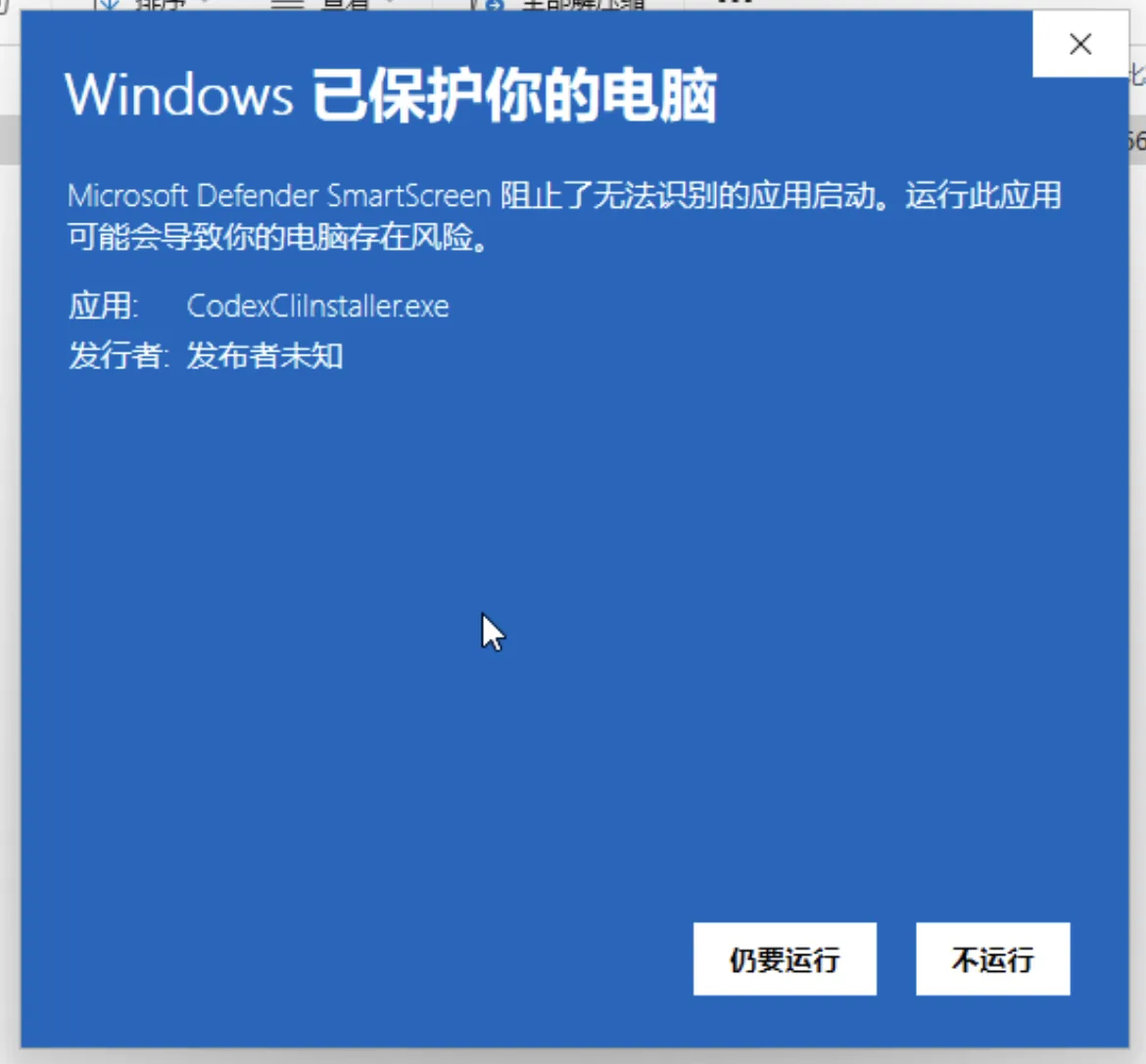
If you see a "Windows protected your PC" prompt, this is the normal Microsoft Defender SmartScreen warning for an unsigned app and is safe to continue — click Run anyway.
3. Node.js downloads automatically
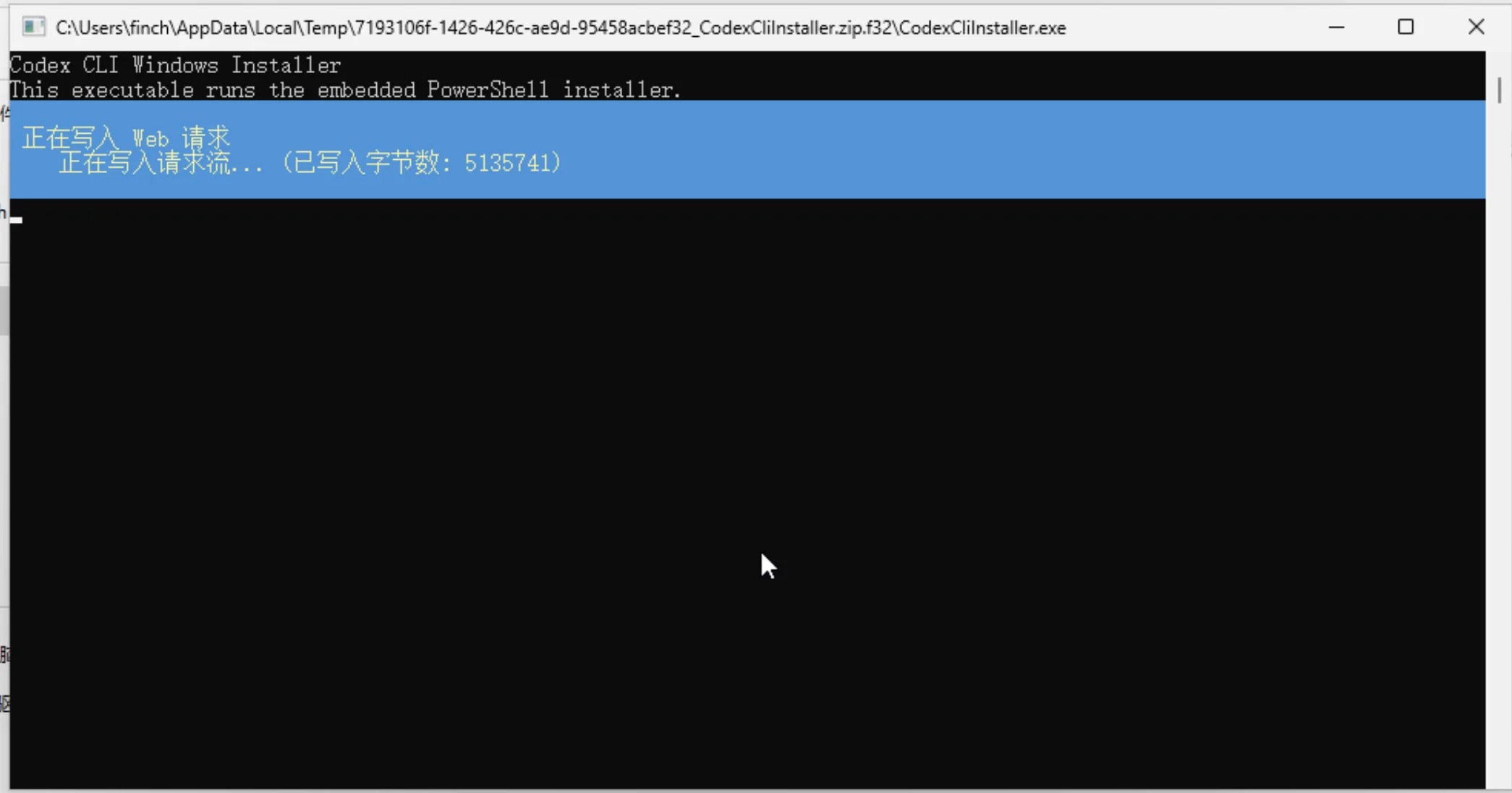
The installer automatically downloads the Node.js runtime that the Codex CLI requires. No manual steps needed.
4. Install Node.js
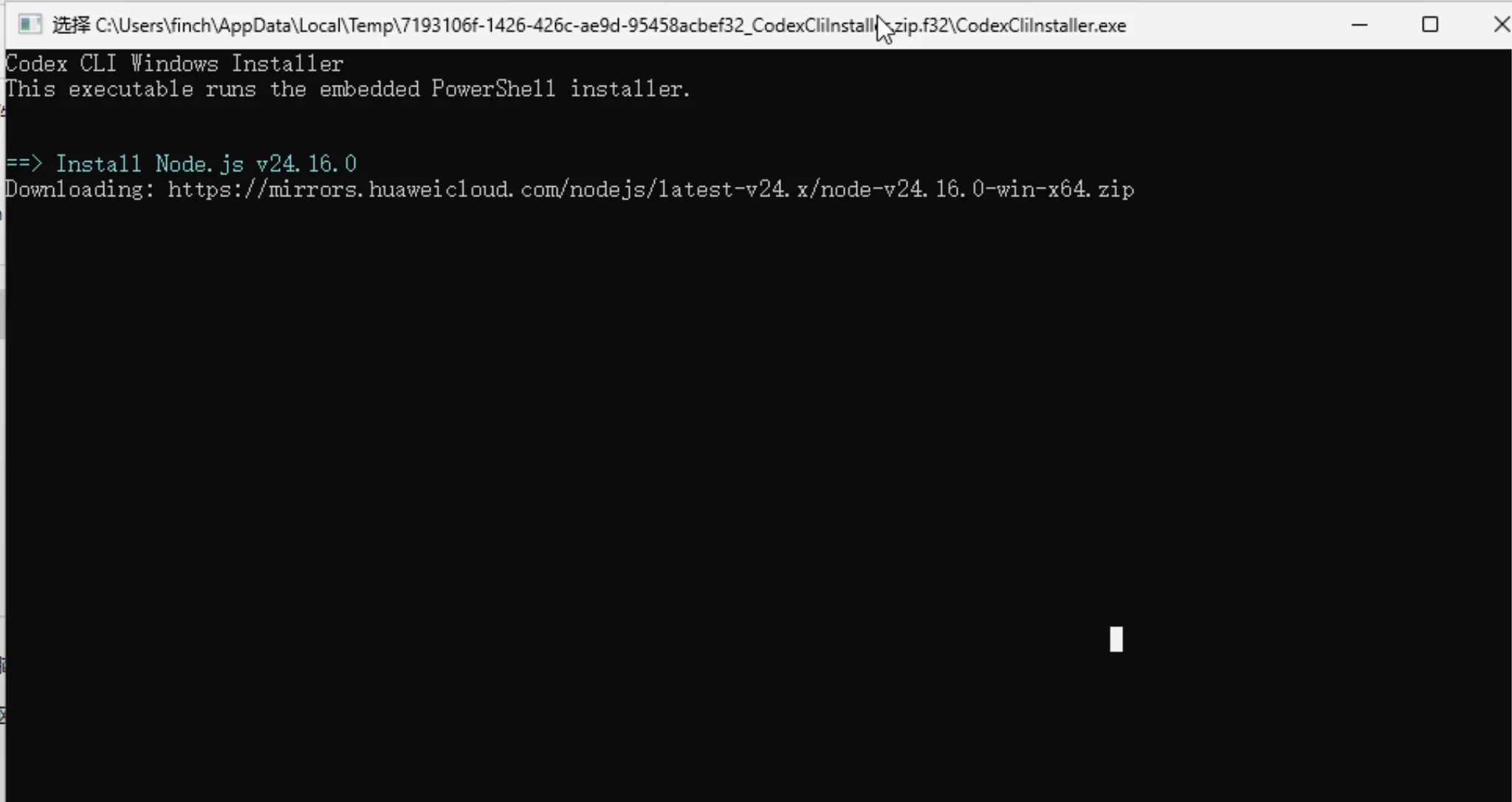
Once the download completes, the installer installs Node.js automatically.
5. Install the Codex CLI
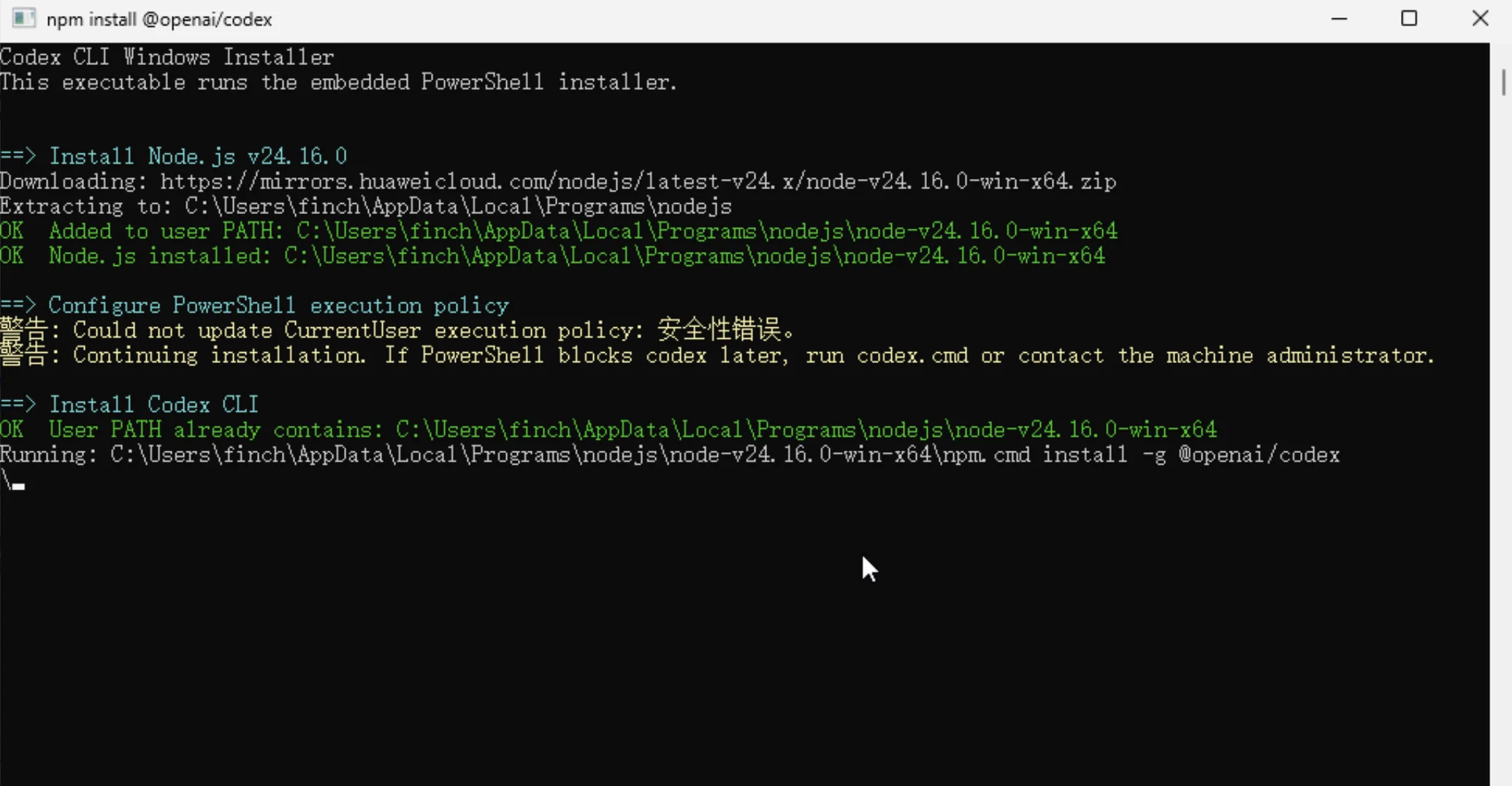
With Node.js ready, the installer continues by installing the Codex CLI.
6. Enter your CiYuanX token
When the installer prompts Enter CIYUANX_API_KEY:, copy the API token you created on the platform, paste it here, and press Enter to confirm.
Get your token
Create and copy your token on the API Keys page.
7. Start using it
After installation finishes, open PowerShell, switch to your project directory, and run codex to get started:
cd C:\path\to\your\project
codex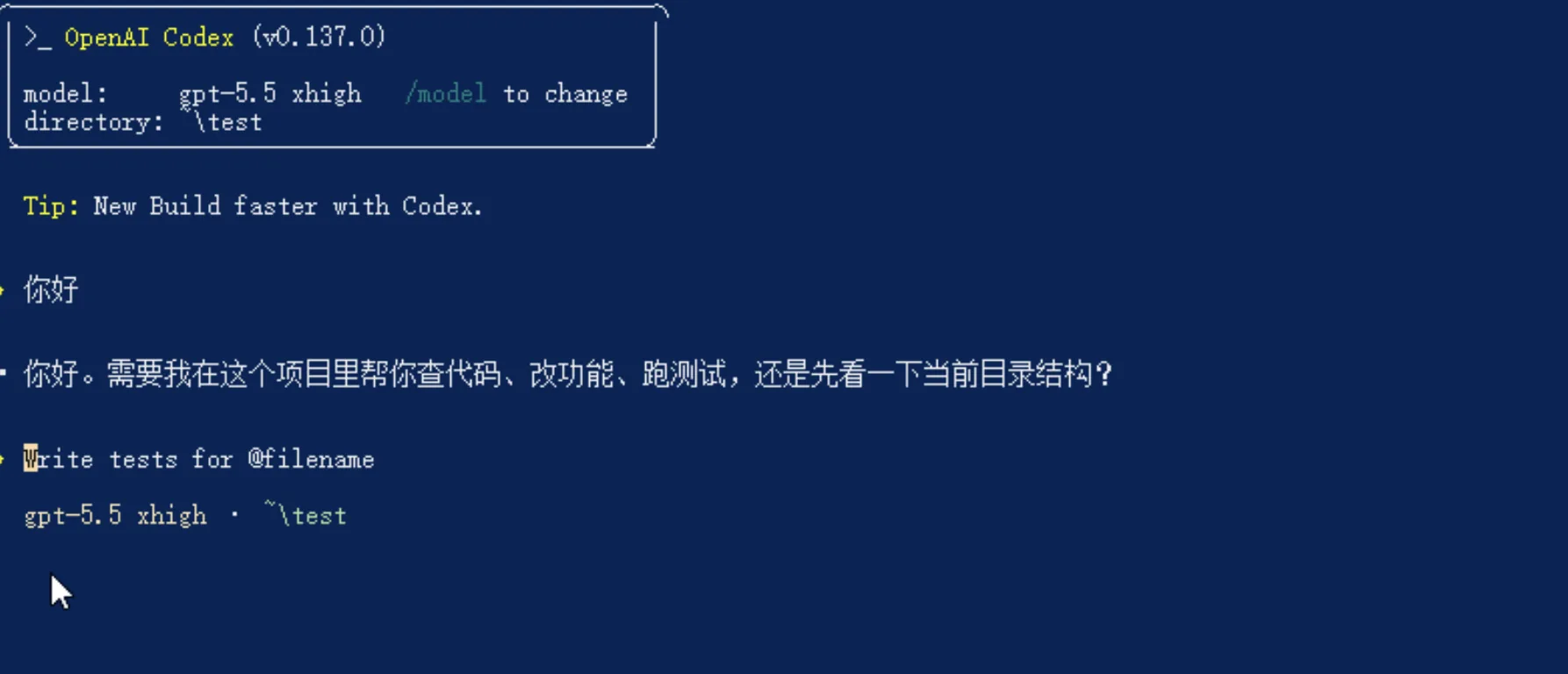
That's it — the Codex CLI is now configured with CiYuanX and ready for coding.
One-click script (macOS / Linux)
If you're on macOS or Linux, you can use the one-click install script to set everything up. The script automatically:
- Installs Node.js (>= 20, via a fast mirror) and npm
- Installs the Codex CLI globally (
@openai/codex) - Writes
~/.codex/config.toml(CiYuanX configuration) - Adds
CIYUANX_API_KEYto your shell profile
Option 1: One-line install (recommended)
Open a terminal, paste the command below, and press Enter. You'll be prompted for your CiYuanX API key:
curl -fsSL https://ciyuanx.io/package/install-codex.sh | bashYou can also pass the key in advance via an environment variable to skip the interactive prompt:
CIYUANX_API_KEY=sk-xxxx bash -c "$(curl -fsSL https://ciyuanx.io/package/install-codex.sh)"Option 2: Download then run
If you'd rather inspect the script before running it, download it first:
curl -fsSL https://ciyuanx.io/package/install-codex.sh -o install-codex.sh
chmod +x install-codex.sh
./install-codex.sh                 # enter your API key interactively
./install-codex.sh -k sk-xxxx      # pass the API key as an argument
Get your token
Create and copy your token on the API Keys page.
After installation
Reload your shell so the config takes effect, then verify the install:
source ~/.zshrc        # or your shell's profile, e.g. ~/.bashrc
node -v && codex --version
codex "Hi"             # test the connection
Mirror acceleration
By default the script downloads Node.js and the Codex CLI from fast mirrors. To customize, override them with environment variables:
NODE_MIRROR="https://your-node-mirror" \
NPM_REGISTRY="https://your-npm-registry" \
./install-codex.sh
Optional: Install the Codex desktop app
Once the Codex CLI is installed and working, you can optionally install the Codex desktop app for a graphical chat interface. The desktop app reuses the configuration the CLI already set up, so there's no need to re-enter your token.
1. Install from the Microsoft Store
Open the Microsoft Store, search for codex, find the Codex app, and click install.
You can also use the Windows Package Manager (WinGet) to install OpenAI's Codex Windows desktop app from the Microsoft Store:
winget install --id 9PLM9XGG6VKS -s msstore2. Complete the first-run setup
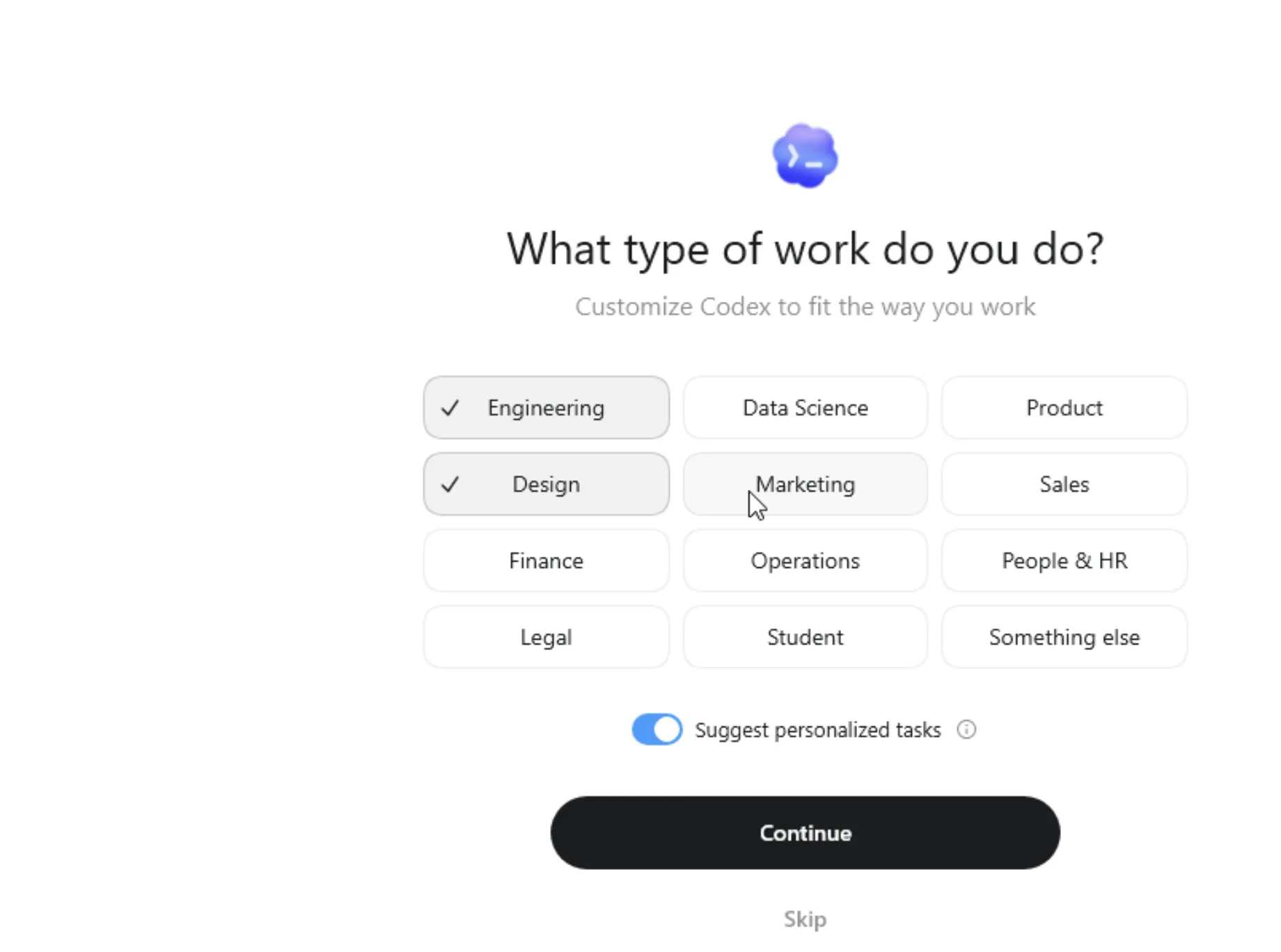
After installation, open the Codex desktop app and follow the first-run prompts — select your type of work and other options, then click Continue (or Skip to skip).
3. Start chatting
Once setup is complete, you can use Codex for conversations as normal.